Suppose a task is to add a button in Pier to execute code. One way to do that is (code download):
- Create a class to describe the parameters sent with the button click. For this example a single string is given:
Object subclass: #PRAdHocObject
	instanceVariableNames: 'parameter'
	classVariableNames: ''
	package: 'Pier-Forms'
- Add read and write accessors:
PRAdHocObject>>parameter: aString
	parameter := aString

PRAdHocObject>>parameter
	^ parameter ifNil: [ parameter := '' ]
- Create a method describing the parameter:
PRAdHocObject>>descriptionParameter
	<magritteDescription>
	^ MAStringDescription new
		  parameterName: 'parameter';
		  accessor: #parameter;
		  beSearchable;
		  priority: 120;
		  label: 'Parameter';
		  beRequired;
		  beEditable;
		  yourself
- Create a component by defining a class
PRViewComponent subclass: #PRAdHocFormView
	instanceVariableNames: ''
	classVariableNames: ''
	package: 'Pier-Forms'

PRAdHocFormView class>>isAbstract
	^ false
- Create a render method
PRAdHocFormView>>renderContentOn: html

	| component |
	(self context isValidCommand: PREditCommand)
		ifTrue: [
			html form: [
				html render: (component := PRAdHocObject new asComponent).
				html submitButton
					callback: [
						component save.
						Transcript
							show: 'The button was pushed: ';
							show: component model parameter;
							cr ];
					with: 'Push' ] ]
		ifFalse: [
			html render:
				'Edit is not valid in this context - no button to push' ]
- Create a class for the structure
PRStructure subclass: #PRAdHocForm
	instanceVariableNames: ''
	classVariableNames: ''
	package: 'Pier-Forms'
- Wire it up with the view created earlier
PRAdHocForm>>viewComponentClass
	^ PRAdHocFormView
- Next is the work in the web browser
WebBrowser openOn: 'http://localhost:8080/pier'.
- Add a link, choose PRAdHocForm: The list of options is generated in
PRAddCommand>>#structureClasses, along with the the permissions to add that class for the user. Either use an admin user or add the permission under the Change Owner link - Set the title of the page to be more readable
- Type some test text in the parameter, click the button
After the button is clicked, the following should appear in the transcript:
The button was pushed: This is the parameter as text
Unfortunately this does not provide the operator much feedback that the button was clicked, but adding that code would double the size of the example.
This code was taken from previous work in
PierWorkout.
Installing a new Pier instance can be done, but different steps are needed to upgrade a running Pier wiki. The overall export/import process is:
- Export data into a class
- Export history into a file
- Load the class data and create the wiki in a new image
- Read the history text
- Test the webserver
- Setup NginX for security
Listed below is an upgrade tutorial one can try out.
Steps for Exporting a Running Wiki
- Prepare the environment so mistakes like an out-of-date export are avoided:
 [localhost Pharo]$ mkdir -p old
 [localhost Pharo]$ mv PRKernelCreatorForPier.st history.txt pier_addons.image pier_addons.changes old/
and:
 [webserver Pharo]$ mkdir -p old
 [webserver Pharo]$ mv wiki.tgz old/
Files that do not exist can be ignored.
- Copy the image and changes file to a local machine where you can run
pharo-ui: [webserver Pharo]$ tar -czf wiki.tgz pier_addons.image pier_addons.changes
 [localhost Pharo]$ scp webserver:Pharo/wiki.tgz ./
 [localhost Pharo]$ tar -xzf wiki.tgz
- Start the image, if you are planning to share the export, then it is a good idea to reset the password first:
(PUUser allInstances detect: [ :user | user name = 'admin' ]) password: 'pier'.
- Load the latest Pier code, run this to open the upgrade tutorial:
ProfStef goOn: HowToSetupPier.
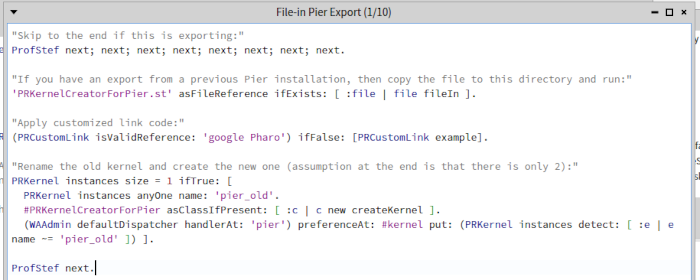
This should open:
- Run the first lines by selecting it and choosing 'Do-It' (or
Control-d): "Skip to the end if this is exporting:"
ProfStef next; next; next; next; next; next; next; next.
- This should skip to the
"Export the Wiki from a Running Image" page. Run all of the code on this page"Code for exporting:"
| problemChars count |
count := 0.
(problemChars := Dictionary new)
...
If one encounters a port number parsing error on windows, check if it is attempting to write to a repository - it may be something that can be ignored.
- Also run the code on the following page to export the history.
- Generate the
PRKernelCreatorForPier.st and history.txt files, copy these along with files to the destination directory
New Image Import
If you don't have a running pier instance, you can still practice with the Blog from this site. It can be downloaded from S3 at: pier_todo.tgz. As of this writing, Pier works on Pharo 11 and older - an example:
[jborden@localhost Documents]$ mkdir Pharo && cd Pharo
[jborden@localhost Pharo]$ curl -L https://get.pharo.org/64/ | bash
...
[jborden@localhost Pharo]$ tar -xzf pier_todo.tgz
[jborden@localhost Pharo]$ ./pharo Pharo.image save pier_addons
[jborden@localhost Pharo]$ ./pharo-ui pier_addons.image &
This should start Pharo, open a workspace (keys are Control-o Control-w) and a transcript (key: Control-o Control-t). Pharo code can be loaded by running:
Metacello new
  baseline:'Pier';
  repository: 'github://Pier-CMS/Pier3:main/repository';
  onConflictUseLoaded;
  load: 'todo'.
Next run:
ProfStef goOn: HowToSetupPier.
Instead of skipping to the end, run the step:
'PRKernelCreatorForPier.st' asFileReference ifExists: [ :file | file fileIn ].
This can take several minutes to run. Proceeded to run the other commands, including:
ProfStef next.
This should move to the "Production Pier Defaults". Also run the commands there and proceed further. The "Pier Libraries" step is related to the Javascript and theme libraries, it can be customized and ran. The "Secure the Seaside App" should have the password changed from the default 'seaside'.
The "Start Running Automatic Tasks" is setup for the pier import. For an other installs it is not necessary to run and can be skipped. The history import is dependent on what type of Persistency is used.
The goal of the "Image Cleanup" is to keep the Smalltalk server running as well as possible. Specific advice on the WAAdmin memory settings can be found on Pier Memory Settings. Removing the original pier instance should help with security and simplifies several automatic tasks.
Once the "Export the Wiki ..." page is reached, the wiki image can be saved. The wiki can be accessed through: http://localhost:8080.
Test Access
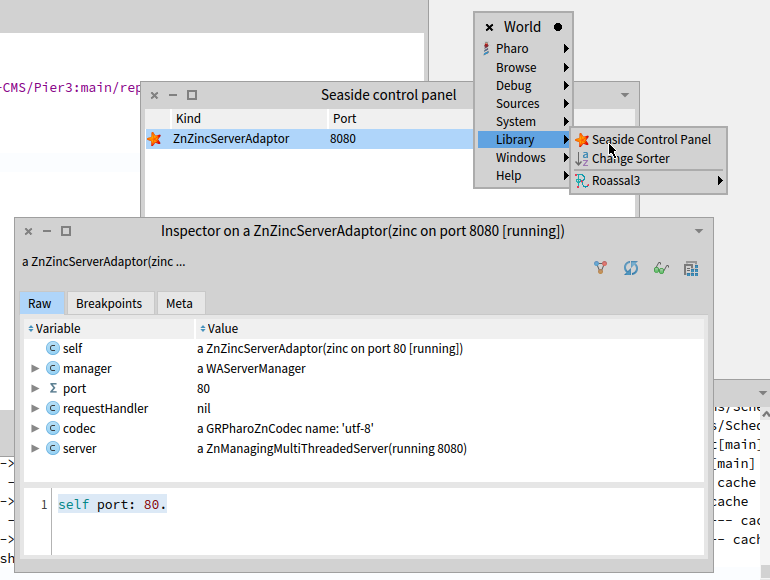
Before adding too many other parts, it is a good idea to test connectivity. While in the wiki image, open:
Change the port to 80 by inspecting the seaside instance and running:
self stop; port: 80; start.
Running a webserver on port below 1024 generally requires administrator access. Copy the wiki image and changes to your webserver and start it there:
root@ip-123.45.67.89:~/Pharo$ ./pharo ./pier_addons.image --no-quit
Check that you can access the wiki - for this example it would be at: http://123.45.67.89 - several things that can help your troubleshoot:
- Did the web browser change to https? This should be using plain http
- check that it has the privilege to listen on port 80 - it may be necessary to run as root with
sudo - check network settings - AWS has security groups that default to deny access. Check that port 80 is open for incoming traffic
- For Ubuntu, check the firewall with
ufw status, more details are in this Digital Ocean tutorial
Don't be surprised if the "Check Image Save" page reports Transaction file does not exist!, this will be created when edits are done.
Since http traffic is not encrypted, it is not a good idea to login. Even if a VPN is used, the traffic between the VPN and the webserver will not be encrypted (only the traffic from the client to the VPN is secure).
In the image on your local server, update the seaside port to 8080. Save and upload the image.
Reverse Proxy
The next goal is to set up a reverse proxy to redirect port 80 to 8080 where Pier is listening.
An earlier https post describes acquiring certs from LetsEncrypt, this post shows self-signed keys suitable for testing.
Install NginX from source.
Once one has a DNS name, the it can be setup for Serving Pier with HTTPS (here are several good reasons why).
Install NginX:
[ec2-user@ip-172-31-26-77 ~]$ sudo yum clean metadata
[ec2-user@ip-172-31-26-77 ~]$ sudo yum -y install nginx
[ec2-user@ip-172-31-26-77 ~]$ nginx -v
nginx version: nginx/1.24.0
For Ubuntu, apt-get install nginx. Modify the config file:
[ec2-user@ip-172-31-26-77 ~]$ sudo vim /etc/nginx/nginx.conf
...
        include /etc/nginx/default.d/*.conf;

        location / {
                proxy_pass http://localhost:8080;
                proxy_http_version 1.1;
                proxy_set_header Host $host;
        }
...
[ec2-user@ip-172-31-26-77 ~]$ sudo nginx -t
nginx: the configuration file /etc/nginx/nginx.conf syntax is ok
nginx: configuration file /etc/nginx/nginx.conf test is successful
[ec2-user@ip-172-31-26-77 ~]$ cd Pharo
[ec2-user@ip-172-31-26-77 Pharo]$ ./pharo pier_addons.image --no-quit &
[ec2-user@ip-172-31-26-77 Pharo]$ sudo systemctl restart nginx
Another example is on the page NGinX in Front of Pier.
The check_pier.sh script can be ran in cron to keep it running.
In recent days, when importing a pier extract into a clean image, it has shown up as:
The problem is it has a link to content, but does not have the content embedded in the page -- all the pages look the same. The problem is the localEnvironment is set to a page named
environment that has no content or a parent. In the default pier install, the localEnvironment is nil.
This can be fixed by running:
PRKernel instances anyOne root localEnvironment parent ifNil: [ PRKernel instances anyOne root localEnvironment: (PRPathLookup start: PRKernel instances anyOne root path: '/system/templates/environment') ].
In a similar manner, the missing CSS can be resolved with:
PRKernel instances anyOne root localStyleSheet: (PRPathLookup start: PRKernel instances anyOne root path: '/system/components/StyleSheet').
Another solution is to have the settings setup so the environment is taken from /template - this is how recent Pier installs are setup. Older versions were set to use the above /system/templates/environment.
For Pier wiki pages, there is an option Edit Design that uses the PRDesignCommand to edit the environment page for the current structure (it requires one to be logged in). Recently this brings up a seaside walkback with: Message not understood: PRDocument>>#environment - the document does not have an environment, it is the structure that has an environment.
As an example, this page uses a different Template that removes the header (here's a link to the parent page). Details on CSS are on Changes For Pier.
To remove the Edit Design button the class PRDesignCommand can be removed. Newer baselines for Pier exclude the Pier-Design package that has this class (similar to Remove PierAdmin from Baseline).
Two types of computers are used:
- timing system - an example is the Colorado brand
- MeetMobile - a single general-purpose laptop can be used, or multiple laptops networked together. Networking allows one for scoring and another for printing.
Steps for timing:
- Hit Arm before the start (or reset)
- Check that the starter signal was received; verify swimmers, click OK to turn off any empty lanes
- Check for soft touches on 100 yards and above
- Write down race number on heat-sheet
Sequence for scoring:
- Choose run session
- Next: interface - timer - download to CST (high school meets are generally the same events and a previous meet can be used if there is not much time)
- Check race number
- Fetch times
- Process DQ sheets
- Calculate against timer sheets - any difference of 0.15 or less can be ignored
- Score - print 3 for Y meets, one is stapled with timer sheets and white DQs, other two go to the announcer for reporting and posting
- Repeat from fetch for remaining races
Troubleshooting
One error is that impostarte.dbf is corrupt. This can be resolved by choosing Utilities - Reindex (adding a swimmer late can generate a similar error).